

Verified Git Commits
When it comes to software development, trust and security are very important. One easy way to level up both is by using verified commits.
Whether you’re working on an open-source project or in a private company, verified commits can make sure your contributions are legit. Let’s break down what they are, why they’re important, and how to start using them.
What are verified commits? #
A verified commit is basically a Git commit that is signed by the author using a digital signature. This signature proves that the commit actually came from the person who says they made it. Tools like GPG (GNU Privacy Guard) let you attach this signature to your commits.
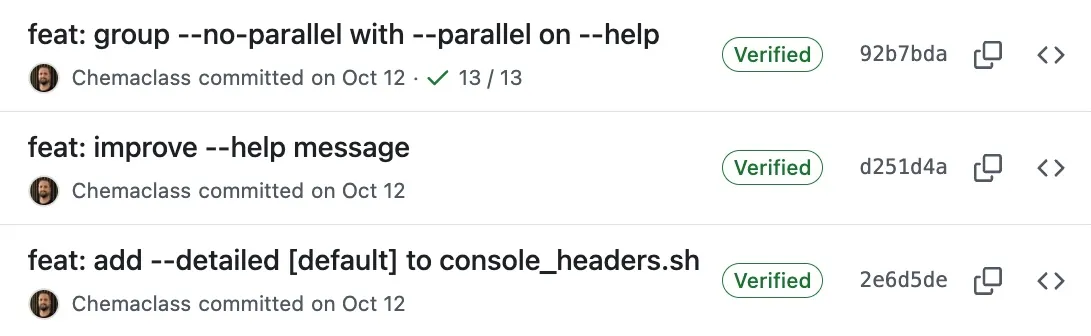
If you’re using platforms like GitHub, you’ll notice a little “Verified” badge next to commits that are signed properly. It’s a quick way to show that the commit is authentic.
Why Are They Important? #
Signed commits help keep your contributions authentic and trustworthy. By adding a cryptographic signature to your commits, you prove that the changes came from you. This is especially important in collaborative environments, where maintaining trust and accountability is key.
Without signed commits, anyone could fake a commit using someone else’s email. For example, they could use your email, and platforms like GitHub would link it to your profile, making it look like you made the changes, even if you didn’t… not good!

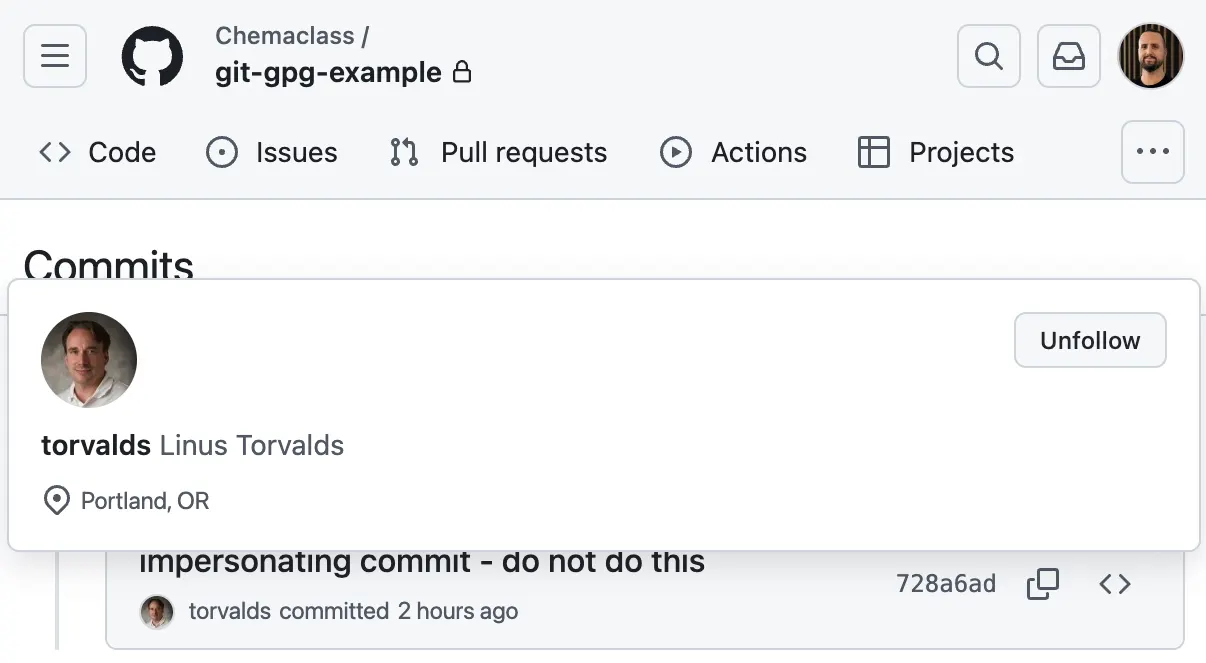
By signing your commits, you show that the work is genuinely yours. It stops impersonation, builds trust in what you’ve done, and keeps everything transparent and accountable.
Note: For this demo, I used a public email address belonging to Linus Torvalds. After pushing the commit to this repository, GitHub recognized the email and linked it to his profile. This impersonation is purely for demo purposes to highlight potential risks. Always use your own email for commits.
How to get started with verified commits #
Set up a GPG key #
First, you’ll need a GPG key to start signing commits. Here’s how:
Generate a GPG key:
gpg --full-generate-keyFind your key ID:
gpg --list-secret-keys --keyid-format=longTell Git to use your key:
git config --global user.signingkey <your-key-id>Make signing commits the default:
git config --global commit.gpgsign trueAdd your key to GitHub/GitLab #
Export your public key:
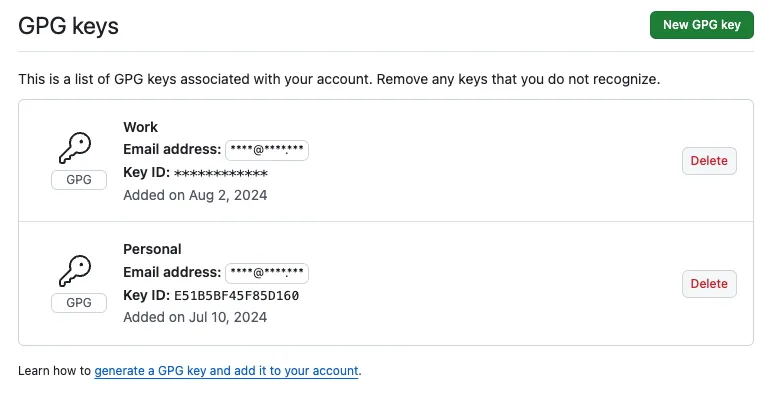
gpg --armor --export <your-key-id>Navigate to “Settings > SSH and GPG keys,” and paste your key.
Start signing commits #
From now on, Git will automatically sign your commits.
If you want to sign a commit manually, just use the -S flag:
git commit -S -m "Your commit message"You can verify the commit signature with:
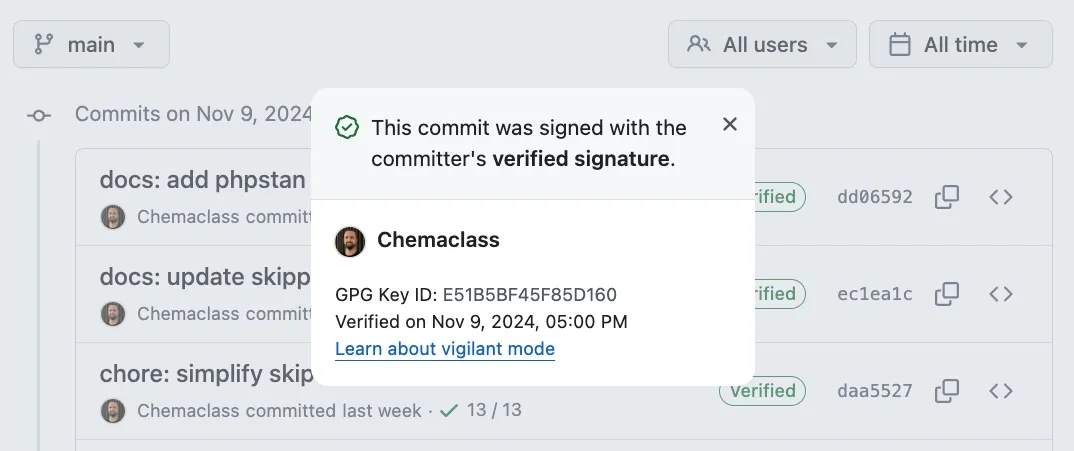
git log --show-signatureAnd also when clicking on the “Verified” badge on GitHub directly.
Verified commits might seem like a small step, but they make your code more trustworthy. It’s an easy way to add an extra layer of protection to your work, and it’s worth it. Give it a try!
Extra: Full setup in Spanish 🇪🇸 #
Related links
- Learn more: What is PGP encryption? A 3-minute tutorial for beginners